
Products:The latest news:
|
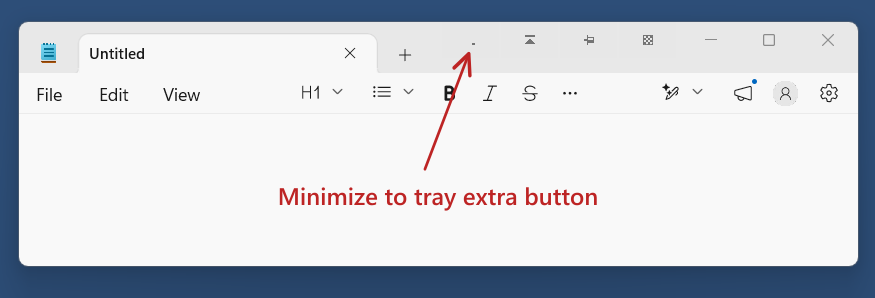
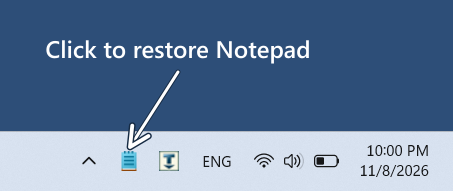
How to minimize any application to the System Tray in Windows 11/10Minimizing to tray hides a window from the taskbar while the application keeps running. You can restore it from its notification-area icon. 4t Tray Minimizer offers several ways to do this in Windows 11 and Windows 10, from a titlebar button to automatic rules. It works with most application windows; custom window controls and permission differences can affect compatibility. Before you beginDownload and install 4t Tray Minimizer and keep it running. The additional titlebar buttons and tray icons for hidden windows are enabled by default. Minimize an application to the tray in 3 steps
Other ways to minimize windows to the trayUse this quick list to compare all eight methods. The first links to the three-step tutorial above; the remaining methods offer alternative controls and automation.
Use the window system menu or taskbar menu4t Tray Minimizer can add a Minimize to Tray command to the standard window system menu.
You can also use the command from the window's taskbar menu where available. If a right-click on a taskbar button opens a jump list, try Shift+right-click to open the window menu. If the command is missing, check View > Options... > Titlebar > Additional window menu. Depending on your settings, commands may be inside a 4t Tray Minimizer submenu. Use a keyboard shortcutPress Shift+Esc to minimize the active window to tray with the version 6.10 defaults. To check or change the shortcut:
Choose a key combination that does not conflict with shortcuts used by your applications. This method is also useful when an application has a custom title bar that does not display additional buttons. Customize the standard Minimize, Maximize, or Close buttonYou can assign Minimize to Tray to an action on a standard window button. For example, configure a right-click on the normal Minimize button to minimize to the system tray while keeping its ordinary click action.
Customizable actions include normal clicks, right-clicks, double-clicks, and clicks with modifier keys. General button customization is available in Free and Pro. With Pro, you can use a Favorite's settings to customize the behavior for one application. Minimize to tray instead of closing an application (Pro)For an application you want to keep running, use Pro's Favorite settings to change its Close behavior.
Pro also lets you redefine how a Favorite responds to Alt+F4. Configure that behavior too if you want the keyboard close command to minimize to the system tray. When you intend to stop the application, use its own Exit or Quit command as appropriate. Automatically minimize an application to tray (Pro)Automatic Favorite rules minimize windows without a separate click or hotkey:
4t Tray Minimizer must be running for its rules to take effect. If an application keeps restoring itself after being minimized, Pro also offers an option to block self-restoration. Use an application-specific shortcut (Pro)A general hotkey acts on the active window. A Favorite hotkey targets a particular application.
You can also assign a shortcut to restore the hidden Favorite, or configure a single shortcut to launch, minimize, and restore the application. Minimize multiple windows to tray
To clear several windows at once, use 4t Tray Minimizer's Minimize all windows to the system tray action. You can assign a general keyboard shortcut to this action in Free and Pro. A separate Restore all hidden windows action brings hidden windows back. In Pro, Favorite actions can also minimize all instances of a particular application to the system tray and restore all hidden instances. Use these when you want to manage several windows of one Favorite together. TroubleshootingThe Minimize to Tray button is not visibleCheck View > Options... > Titlebar > Additional titlebar buttons. If buttons overlap the application's controls, adjust Shift to the left from the standard buttons (in pixels) on that tab. Applications with custom title bars may not display or respond to the extra controls correctly. Try the window menu or keyboard shortcut instead. The application's tray icon is not visibleCheck the Windows 11 ^ hidden-icons popup as described in How to restore an application. Also check View > Options... > Hiding > Show tray icon; Pro Favorites can have their own icon settings. Hiding without a tray icon is a separate action from minimizing to tray. The window does not minimize as expectedTry the window menu or Shift+Esc, and check that the application is not excluded in View > Options... > Exclusions. If the target application runs as administrator, 4t Tray Minimizer may need matching administrative rights to access its window; see help for an application that does not respond. Some custom window controls have compatibility limitations. Which method should you choose?Use the titlebar button or window menu for occasional mouse access. Use a keyboard shortcut for frequent actions, or customize the standard Minimize button to fit your workflow. Choose Pro's Favorite settings when you want an application to minimize to tray automatically, respond differently to Close, or have its own shortcuts. For a full list of capabilities and edition differences, see all 4t Tray Minimizer features and compare Free and Pro. |
Current version: 6.10Setup size: 1.86 Mb Released: 5 Nov, 2026 System requirements:
4t Tray Minimizer Free 6.10: |
Copyright © 2001-2026. 4t Niagara Software. Designed by Holbi. All rights reserved. Privacy | Terms